GIF Fun 2 (Color Edition)
After the first entry was a bit of a downer, let us have some cool GIF-related fun this time. And by fun I mean a discussion on how we can achieve a thing and the inevitable realization why it won't work.
As you might know, GIFs are not made for very color-rich images. This is because a singular image within a GIF can only have up to 256 individual colors, leading most programs that convert a graphic or video into a GIF to somehow reduce the number of colors in the process. But what if we want more? What if we are not content with our lot in this world and strive to defy the very machine gods some people are trying to build? Can we do it? Can we achieve a GIF that has more than 256 colors on-screen at the same time? YES, WE CAN!! But it is not a great idea.
Let's start by looking at a single image, nothing moving, just a still image. We are going to use that 104 by 104 pixel image to keep the GIFs we end up creating from getting too big. It has about colors, making it impossible to fit inside a single GIF image without some color reduction.
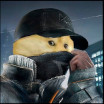

In order to conserve all colors, we can create multiple sub-images, each holding a part of the complete picture. There are two major ways to do so; one is even possible for the older GIF specification, so we will start with that one. To make the distinction between the main image we want to include and the images we will create more clear, I will refer to the latter as sub-images.
GIFs allow us to position individual images on the overall Logical Screen (the full area the GIF uses to display images on), so we can break our image into rectangular chunks, each of 256 or fewer colors, and have each chunk become a sub-image.
We can use this tactic in both GIF versions, as it is not dependent on anything only available in the newer version (the one from 1989). However, we would need a lot of images, and some of those images are likely to end up using the same colors again and again. As each individual part can hold at most 256 colors, we are likely to end up with a lot of 256-pixel rectangles if the original image has a lot of locally differing colors.
With a rather naïve implementation, our example image yields us something we definitely can improve upon. The implementation simply goes over the rows and packages sequences of pixels such that either the row is over or 256 unique colors have been achieved, and then the next sequence starts. This could be improved with a better search and growth of the rectangle, but because this approach is inferior anyway, I did not bother making it more efficient. Because our original image is only 104 by 104 pixels, the result is not that interesting, as each row fits into a sub-image; wider images would result in multiple sub-images per row.

We can do better than that if we use a feature that, ironically, lets us only use 255 colors per sub-image: it is the option to have transparency.
With the first idea, we could only capture rectangles with up to 256 colors, leading to multiple sub-images having overlapping colors, but with transparency, we can bundle all pixels of up to 255 colors in one sub-image. This means we will likely need fewer sub-images in total, and while it also means each sub-image is going to be as big as the full image, transparency compresses rather nicely. In case we want to save a bit more memory, we can shrink down the sub-images such that everything outside the rectangle would only be transparent anyway. For images that have little color spread, this option will have good efficiency.
My implementation for both versions of this idea is not the best, as it does not check for the optimal distribution of colors onto sub-images and instead iterates over all colors in order of their appearance and packages them into sub-images that way.


A quick note on the file sizes. Because the methods involve creating multiple sub-images, it is not surprising that the resulting GIFs are bigger than the original image by up to 10 times. We also have to keep in mind that even the more efficient method, where we bundle all pixels of a color into the same image, still grows with the number of unique colors such that every 255 colors add another sub-image. It would be wise to add some step of color reduction to the process, even if it is a simple one that reduces colors that are near to each other.
With that, we have seen both major ways how to conserve color if we want to. However, it is time to address something you might have noticed: all of these supposedly one-image GIFs are actually animated!
Of course, divvying up an image into smaller parts and each of those becoming a sub-image in the GIF leads to the GIF simply having a sequence of images, so it seems obvious that they would be pseudo-animated as each image is processed and only then put on the screen. But there is more going on here. Programs used to display GIFs, for whatever reason, seem to treat every GIF with multiple images as an animation, even if the info given within the GIF points to it not being one. You can easily see that if you make a GIF without Graphic Control Extension blocks, which are the part that tells a program how fast to play the GIF, or if you set their delay value to 0. You will still observe that the GIF will play as an animation, and in most cases it will be an even slower animation than if you set the delay to 2.
I guess GIFs are so often used for animation that any major program to display them has an in-built delay between images and does not show them the moment they are decoded, even if they do not have any animation information on them.
So it seems like for color-rich images and videos, we really ought to use a better format than GIFs. The fact that most programs do not seem to respect the standard with regard to a non-existent delay and instead will use a default simply makes it hard, if not impossible, to actually enjoy a color-rich GIF animation. If we also factor in the explosion in file size, it really does not look like GIFs will be a better choice than a direct video format. We can still end up enjoying more than 256 colors on-screen, though, but that is for animations where two frames in the original have overlapping pixels and a use of transparency leads to some old values being still shown in the next frame, which then can have additional colors. In general, transforming an image so it has fewer colors is going to be a part of any GIF-related workflow, no matter how many tricks you might want to employ in addition to that.
By the way, you can see the individual sub-images of the given examples if you download the image files and then put them into my GIF editor thingy; that way you can also check that the first version does indeed not even use Graphic Control Blocks and that the other ones do have a delay of 0.
And that's it for today's post